It is FAR more cost effective to print on regular 8.5″x11″ paper and use clear packing tape to affix to your tote verses using Thermal Labels. Labels tend to fade rather quickly whereas paper doesn’t. We recommend using paper BUT if you are going to use labels we recommend using UV stable labels.
You can print labels when creating a Tote or anytime thereafter. We recommend waiting to print until AFTER you have entered the contents so the contents will appear on your label.
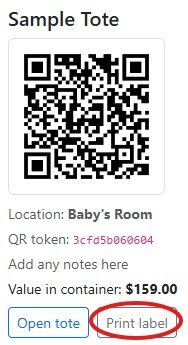
From your Dashboard find your tote and click on Print Label:
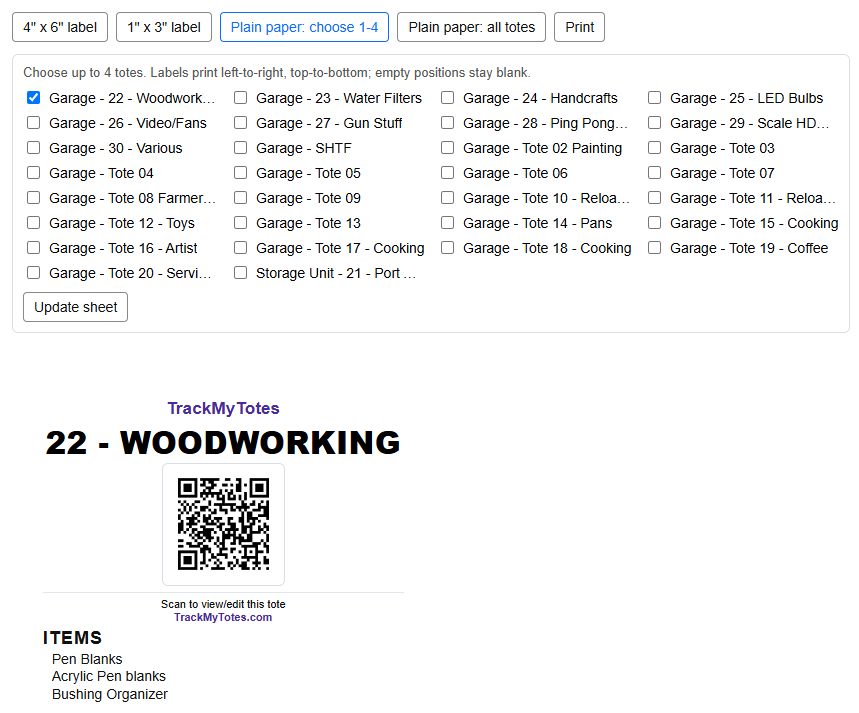
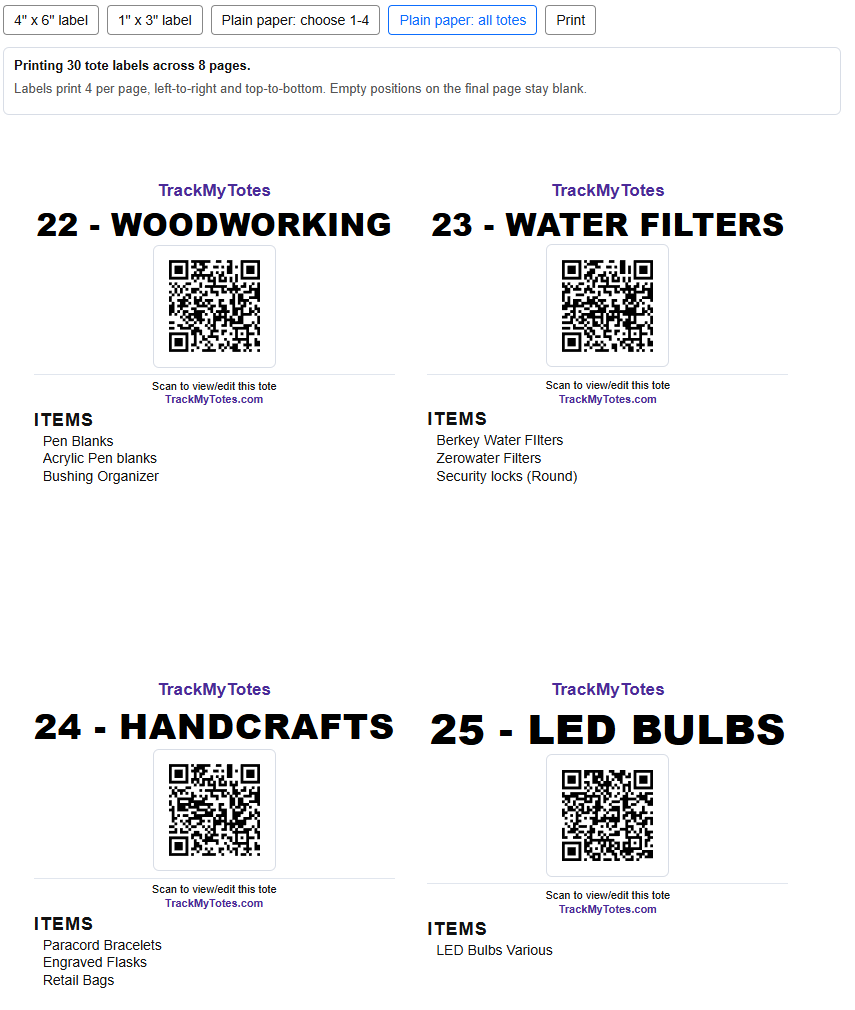
As stated above, we recommend using plain paper. There are 2 options: Print 1-4 labels or all labels. If you select 1-4 labels, all of your labels will appear and you can check up to 4 labels to print. If you select all totes it will print labels for every tote. You will always see 1-4 preview labels prior to printing.
Using Labels
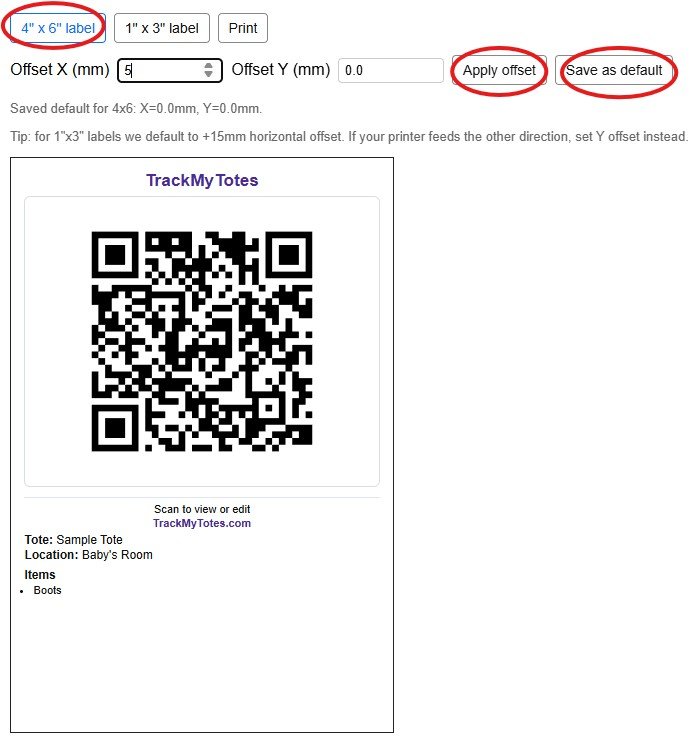
We tested with the iDPRT SP420. When printing if the label is printed to far left or right you can use the X Offset to move the label. Positive numbers move the print to the RIGHT or DOWN from the TOP of the label. Negative numbers Move the label LEFT or UP from the TOP of the label. Click apply offset and do a test print. Once you have your offset for your printer set, click SAVE AS DEFAULT: